
3File Maintenance
Option 4Edit Budgets By Month
This function allows you to edit Budget amounts for a given fiscal month and year, or for Start of Year or End of Year, for all budget types and accounts. The following processing steps accomplish this job.
- Step 1This function allows you to enter the fiscal month and year for which Budget amounts are to be edited, and determines whether the values entered or edited are to be in year-to-date (CUM) or month-to-date (NET) terms. Select the Cancel option to return to the menu.
The screen shown below allows you to enter parameters needed by the Edit Budgets by Month utility.
Edit Budgets by Month Parameters screen
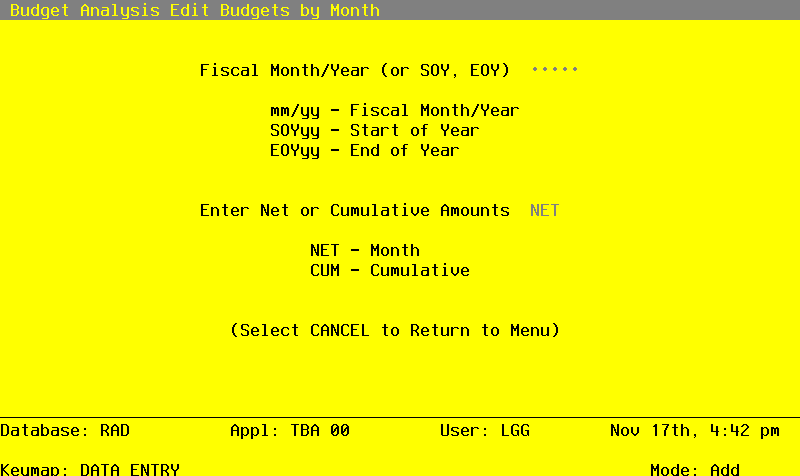
Data items for the preceding screen are described below:
- Fiscal Month/Year
Upper case, up to 5 characters Required Carries forward in ADD mode
Define the accounting period to which these parameters apply. Valid entries and their meanings are:
mm/yy: 2 digits each for the fiscal month and year for these entries (months can be 01 - 13; the slash must be included)
EOYyy: End-of-Year, followed by 2 digits for the fiscal year
SOYyy: Start-of-Year, followed by 2 digits for the fiscal year
- Net or Cumulative Amounts
Letters only Valid: NET, CUM Required Carries forward in ADD mode
Enter an upper case alphanumeric field, up t 3 characters in length.
Define the code that identifies the terms in which the budget amounts are to entered.
- NET
- Month-to-date net activity
- CUM
- Year-to-date cumulative amounts
The entered data is validated. During validation, including access to other files, conditions may be found which cause messages to be displayed. Errors (E), Warnings (W), and Messages (M) that may result are shown below:
Press ENTER to save the information on this screen.
- Step 2This function allows you to enter or edit budget amounts by fiscal month for all budget types and accounts. The budget records must already exist. Initially, you begin in update (CHG) mode.
When you use this function, a record of all entries will be printed. For additions, all new field contents are printed; for deletions, the deleted record’s contents are shown; for changes, both old field contents and new field contents are shown; and in all cases, the User ID, date, and time are printed.
The screen shown below presents information about Budget Amounts.
This file stores monthly budget amounts by budget type, account number, and fiscal year.
Edit Budgets by Month screen

When the key value for a particular record is requested, you can review all the records in the file by selecting the Scan option. The records will be presented on an “Access” screen, and you will be allowed to scan the available data until you find the record you want. Then, position the cursor by that record and press ENTER; the record will be displayed for editing.
Data items for the preceding screen are described below:
- Fiscal Year
Positive number, up to 2 digits Display only
Identify the Fiscal Year for this Budget record.
- Budget Type
Alphanumeric, up to 12 characters Display only
The budget type and description are displayed.
- Account
Upper case, up to 12 characters Display only
The account number and its description are displayed.
The entered data is validated. During validation, including access to other files, conditions may be found which cause messages to be displayed. Errors (E), Warnings (W), and Messages (M) that may result are shown below:
Press ENTER to display system-supplied information and then press ENTER again to save the information on this screen.
Select the Next Record option to go to the next Budget Amounts record.
At this screen, the use of the MODE keys - CHG, or INQ - pertain to those records in the Budget Amounts file.
- Step 3This step conditionally allows a job to branch forward to backward to any sequence number in the list of functions in the job.