Chapter 7: Read APPX Data with 32-bit PowerShell
Run a Query with a Secure Login Prompt
Use 32-bit Windows PowerShell, even on 64-bit Windows:
C:\Windows\SysWOW64\WindowsPowerShell\v1.0\powershell.exe
Read the complete example below and paste its entire & { ... } block into that 32-bit window. Press Enter on an empty line after the closing brace if PowerShell still shows its >> continuation prompt. This interactive form also works when the computer's execution policy disables .ps1 files.
For repeated use, download query-appx-country-32.ps1 and save it in a working folder. If your site's policy permits the approved script, run:
.\query-appx-country-32.ps1 -Dsn AppxODBC
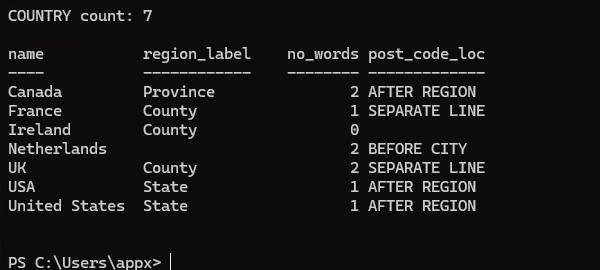
The script prompts for the APPX login, keeps the password out of its displayed results, and prints the count followed by the four-column sample table. It refuses a 64-bit PowerShell process and shows the path to the required 32-bit executable. Its expected output is:
COUNTRY count: 7

name           region_label    no_words post_code_loc
----           ------------    -------- -------------
Canada         Province               2 AFTER REGION
France         County                 1 SEPARATE LINE
Ireland        County                 0
Netherlands                           2 BEFORE CITY
UK             County                 2 SEPARATE LINE
USA            State                  1 AFTER REGION
United States  State                  1 AFTER REGION
If a saved file produces running scripts is disabled on this system, use the reviewed interactive example, or have the administrator arrange the site's approved script-execution method. Keep the existing policy in place.
& {
param(
    [string]$Dsn = 'AppxODBC',
    [System.Management.Automation.PSCredential]$Credential
)

$ErrorActionPreference = 'Stop'
if ([Environment]::Is64BitProcess) {
    throw 'Open 32-bit Windows PowerShell: C:\Windows\SysWOW64\WindowsPowerShell\v1.0\powershell.exe'
}
if (-not $Credential) {
    $Credential = Get-Credential -UserName 'appx' -Message 'APPX login for the selected ODBC data source'
}
if (-not $Credential) { throw 'Login cancelled' }

$connectionString = New-Object System.Data.Odbc.OdbcConnectionStringBuilder
$connectionString['DSN'] = $Dsn
$connectionString['UID'] = $Credential.UserName
$connectionString['PWD'] = $Credential.GetNetworkCredential().Password
$connection = New-Object System.Data.Odbc.OdbcConnection($connectionString.ConnectionString)
$connectionString.Clear()

try {
    $connection.Open()
    $count = $connection.CreateCommand()
    $count.CommandText = 'SELECT COUNT(*) FROM DMO_DMO_COUNTRY'
    $count.CommandTimeout = 30
    Write-Host ('COUNTRY count: ' + $count.ExecuteScalar())
    $count.Dispose()

    $query = $connection.CreateCommand()
    $query.CommandText = 'SELECT * FROM DMO_DMO_COUNTRY ORDER BY name'
    $query.CommandTimeout = 30
    $reader = $query.ExecuteReader()
    $table = New-Object System.Data.DataTable
    $table.Load($reader)
    $reader.Dispose()
    $query.Dispose()
    $table | Format-Table name, region_label, no_words, post_code_loc -AutoSize
}
finally {
    $connection.Dispose()
    $Credential = $null
}
}