
Chapter 3: Make APPX Files Available to SQL
Add the COUNTRY Table to SQL with ASQL
- Open ASQL Dictionary Importer from the installed 5.5.4 package.
- Choose AppxODBC, enter an authorized APPX user and password, and enter DMO for both Database ID and Application ID.
- Select OK. The DMO dictionary tree appears.
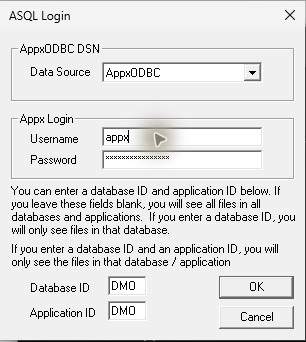
ASQL selects the AppxODBC DSN, which supplies Host, Database and optional Service. DMO in this dialog selects the APPX database and application to import; it is separate from the SQL dictionary appx. Meaning of these names.
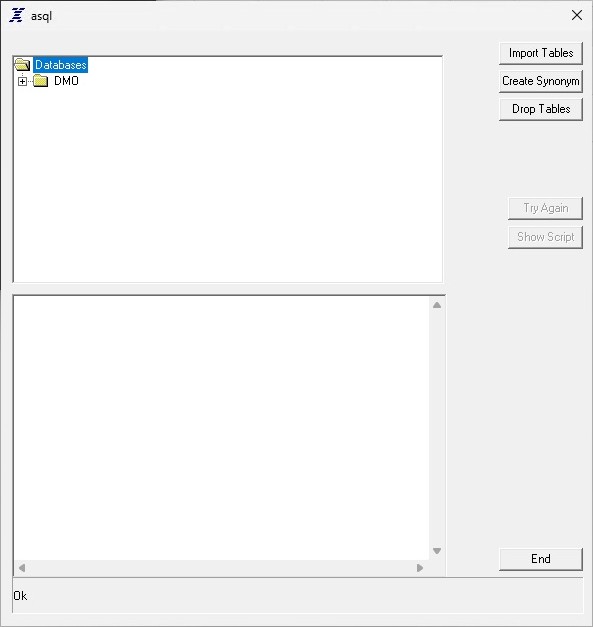
- Expand DMO → DMO, select COUNTRY, and select Import Tables.
- Wait for the check mark beside COUNTRY and Ok in the status line.
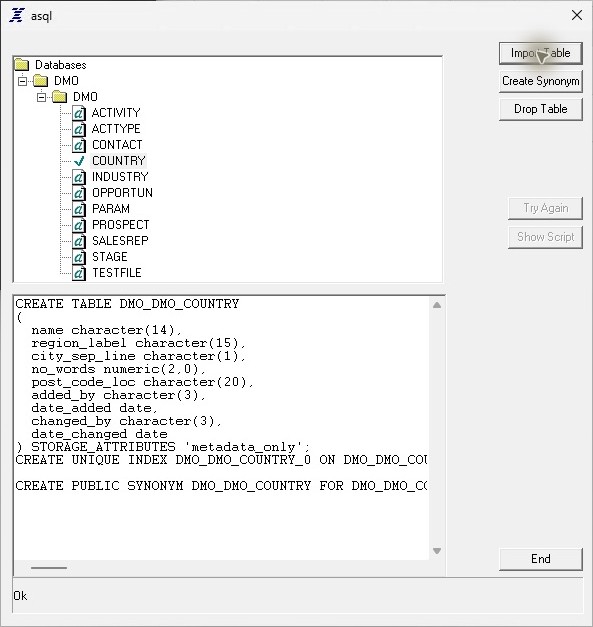
ASQL creates the SQL table metadata, index and synonym. It reads the records from the APPX file when the table is queried; this dictionary import does not copy the business records into a separate SQL database.