
Chapter 6: Create Reports with Crystal Reports 2016
Create a COUNTRY Report
- Select Report wizard on the Crystal Reports start page.
- Expand Create New Connection → ODBC (RDO), choose AppxODBC, and select Next.
- Enter the APPX user and password and select Finish.
- Expand appx, select dmo_dmo_country, and move it into Selected Tables with the right arrow.
- Select Next, then add name, region_label, no_words and post_code_loc to Fields to Display.
- Select Finish. The Preview displays 7 records with the four selected fields.
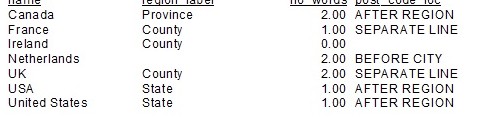
- Select File → Save As, choose a local folder and save
APPX-ODBC-COUNTRY.rpt. - To make a PDF, select File → Export → Export Report. Choose PDF (Adobe Acrobat) and Disk file, select OK, choose All pages, and save the PDF locally.
For an existing report, select Report → Refresh Report Data (F5), confirm the refresh, and supply the APPX login when prompted. Saved report data can be displayed without contacting APPX; a refresh is required to check the current connection.
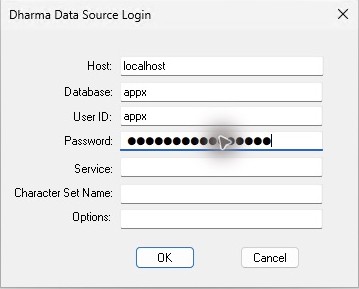
Leave Service empty, as pictured. Blank uses the default sqlnw lookup to reach this gateway on TCP 1992. Database appx selects the SQL dictionary; the APPX user and password authenticate the live refresh. Meaning of these fields.
Verified result: this edition reopened a version-specific copy of the report, refreshed its data from the 5.5.4 gateway, and saved the report and PDF export. All seven records and the four displayed fields match the COUNTRY sample. The report-wizard steps above use the same Crystal Reports 2016 procedure as the 5.5.3 edition.