
Chapter 6: Create Reports with Crystal Reports 2016
Create a COUNTRY Report through OLE DB
This recipe uses OLE DB (ADO) → Microsoft OLE DB Provider for ODBC Drivers → AppxODBC. The Microsoft provider bridges Crystal Reports to the supplied 32-bit APPX ODBC driver. It still queries the live APPX gateway; it does not read an exported spreadsheet or CSV. The direct ODBC (RDO) route failed in this configuration. See the RDO failure note.
- Start 32-bit SAP Crystal Reports 2016. Dismiss the trial status and informational notices if shown. Select File → New → Standard Report to open Standard Report Creation Wizard. Start at its Data page.
- Expand Create New Connection → OLE DB (ADO). Select Microsoft OLE DB Provider for ODBC Drivers, then Next.
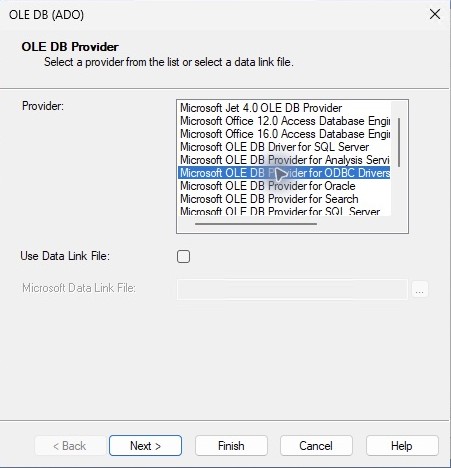
- Select AppxODBC from ODBC DSN, then Next. Enter the authorized APPX user and password. Keep Database: appx, then select Finish.
- Under this new OLE DB (ADO) → AppxODBC connection, double-click Add Command. Use the command under the OLE DB connection, rather than the identically named command under ODBC (RDO). Enter the four-column COUNTRY SQL:
SELECT name, region_label, no_words, post_code_loc
FROM DMO_DMO_COUNTRY
ORDER BY name
- Select OK in the command editor. The wizard shows Command under Selected Tables. Select Next to open Fields.
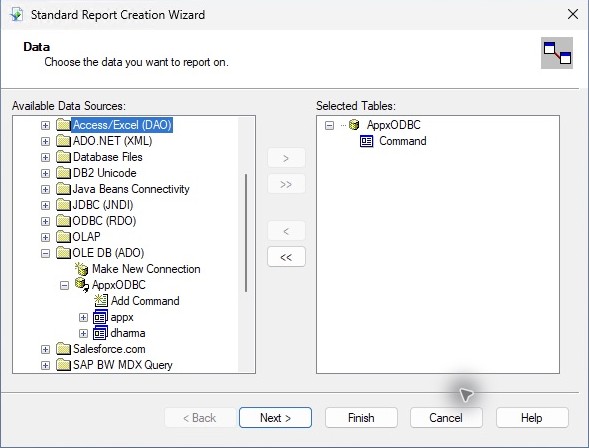
- On Fields, select the double right arrow ≫ to add all four command columns to Fields to Display, in order: name, region_label, no_words, post_code_loc.
- Select Finish to create the report without grouping or selection filters. Check the seven COUNTRY records in Preview against the expected sample, including the blank region for Netherlands and blank post-code location for Ireland.
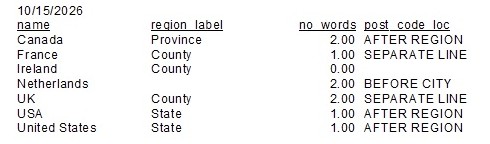
- Select File → Save As and save APPX-551-COUNTRY-OLEDB.rpt in a local working folder. Keep it separate from reports created through a different provider.
- Select File → Export → Export Report. Set Format: PDF and Destination: Disk file, then select OK. Keep All pages selected, select OK, and save APPX-551-COUNTRY-OLEDB.pdf locally.
- Close Crystal Reports, reopen the saved
.rptfile, and press F5. Confirm Refresh report data?, enter the APPX password in OLE DB (ADO) → Connection Information, and select Finish. Wait for the query to finish and check Records: 7 in the status bar before saving again. The initially displayed saved records alone do not prove a new query ran.
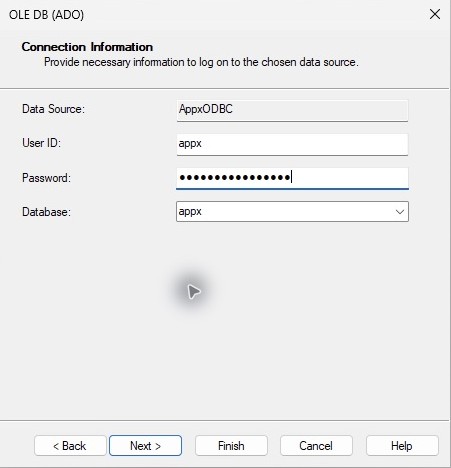
Verified result: a newly created report retrieved 7 COUNTRY records through the OLE DB-to-ODBC bridge. Closing Crystal, reopening the saved report, entering the password and refreshing returned the same seven records. The exported PDF's four data fields agree for every record with the checked sample.