
1Transaction Processing
Option 7Commission Pay Status Edit
Commissions are posted to the Unpaid Commissions file from Accounts Receivable, Order Entry, and Commission Accounting. This function allows you to change information on Unpaid Commissions records before the Commission Transfer function is run. This information includes such items as pay status, pay date, and commission description.
There are two options as to how you can edit Pay Status information. You may edit by salesperson or by invoice. In either case, the system provides you with a setup screen from which you can make your choice. Each option offers a different entry screen. Therefore, the option you choose determines the entry screen that will follow.
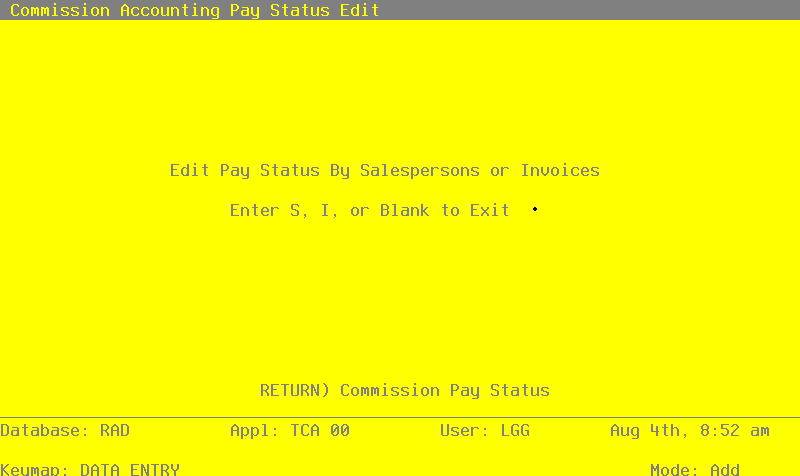
Select “Commission Pay Status Edit” from the Special Functions option on the Transaction Processing menu. The following entry appears:
Commission Pay Status Edit screen
Data items for the preceding screen are described below:
- Edit Pay Status by Salesperson or Invoices
The system allows you to enter either ‘S’, or ‘I’, or you may leave the field blank. If you want to edit Pay Status by salesperson, enter ‘S’. If you prefer to edit Pay Status by invoice, enter ‘I’. Leave the field blank if you wish to exit this function altogether.
The entered data is validated. Press RETURN to save the record and continue.
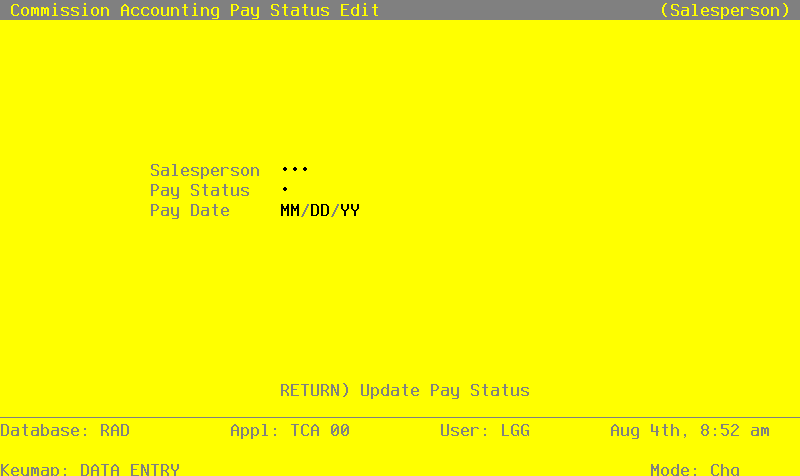
If you enter ‘S’ to edit Pay Status by salesperson, the following entry screen appears:
Commission Pay Status Edit by Salesperson screen
Data items for the preceding screen are described below:
- Salesperson
Enter a valid salesperson number to identify the salesperson on the Unpaid Commissions records you wish to edit. You can use the Scan option to find the appropriate entry. The system displays the salesperson’s name so that you can verify your entry.
- Pay Status
The system displays a pay status code, along with the corresponding description. You may override the display by entering one of the following codes from the Descriptions file:
Code Description N Normal P Pay Commission
H Hold Payment
Normal: Pay commissions only after the invoice has been fully receipted in Accounts Receivable.
Pay Commission: Pay commissions regardless of the status of the invoice in Accounts Receivable.
Hold Payment: Do not pay commissions for this invoice until this status is changed.
- Pay Date
The system displays the date on which the commission will be transferred. By default, this is the same date as the Invoice Date. It may be changed.
If you change the Cr Liability on this screen to pay only a partial amount, the system will set this field to blank on the Unpaid Commissions record.
The entered data is validated. Press RETURN to display system-supplied information. Then press RETURN again to update that salesperson’s unpaid commission records and return to the first screen.
If you enter ‘I’ to edit Pay Status by invoice, the following entry screen appears:
Commission Pay Status Edit by Invoice screen
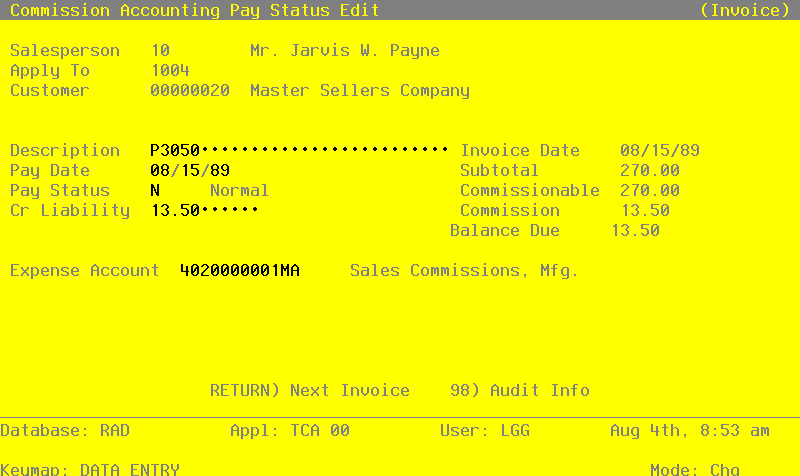
Certain entries on this screen will be automatically displayed. In most cases, the displayed entry can be changed. If an asterisk (*) appears next to one of the fields listed below, it indicates a “display only” entry, which cannot be changed.
When the key value for a particular record is requested, you can review all the records in the file by selecting the Scan option. The records will be presented on an “Access” screen, and you will be allowed to scan the available data until you find the record you want. Then, position the cursor by that record and press RETURN; the record will be displayed for editing.
Data items for the preceding screen are described below:
- Salesperson
Enter a valid salesperson number to identify the salesperson on the Unpaid Commissions record you wish to edit. You can use the Scan option to find the appropriate entry. The system displays the salesperson’s name so that you can verify your entry.
- Apply To
Enter up to eight digits for the number of the invoice that is affected by this edit.
Press RETURN to display the following fields. Note, however, that once you press RETURN, the Salesperson and Apply To fields can no longer be edited.
- Customer*
The system displays the customer number on the invoice to which this unpaid commission applies. If your system includes Accounts Receivable, the corresponding customer name is also displayed.
- Description
The system displays the description of the invoice. You may enter up to 24 characters to change this description.
- Invoice Date*
The system displays the invoice date on the posted commission.
- Pay Date
The system displays the date on which the commission will be transferred. By default, this is the same date as the Invoice Date. It may be changed.
If you change the Cr Liability on this screen to pay only a partial amount, the system will set this field to blank on the Unpaid Commissions record when the partial commission is transferred.
- Subtotal*
The system displays the subtotal of the invoice.
- Pay Status
The system displays a pay status code, along with the corresponding description. You may override the display by entering one of the following codes from the Descriptions file:
Code Description
N Normal
P Pay Commission
H Hold Payment
Normal: Pay commissions only after the invoice has been fully receipted in Accounts Receivable.
Pay Commission: Pay commissions regardless of the status of the invoice in Accounts Receivable.
Hold Payment: Do not pay commissions for this invoice until this status is changed.
- Commissionable*
The system displays the commissionable amount upon which commissions are calculated.
- Cr Liability
The system displays the amount of commission to be paid. By default, this amount is originally set to the commission amount. You can enter up to seven digits and two decimals to change this amount.
- Commission*
The system displays the amount of commission for the invoice.
- Balance Due*
The system displays the portion of the commission which has not yet been transferred for payment. Originally, this field is set to the commission amount; it is updated when commissions are transferred for payment to Accounts Payable, and if a payment is entered through the Adjustments function. (This transfer is made using the Commissions Transfer function, which can be manually selected from the Transaction Processing menu. It can also be run automatically as part of Close Month processing, if this option is selected in the Parameters file.)
- Expense Account
The system displays the expense account for this salesperson from the Salespersons file. It can be changed. If your system includes General Ledger, the expense account number must be on file in the Chart of Accounts file. The system displays the description of this account from that file so that you can verify your entry.
The entered data is validated. Press RETURN to save the record.
Select the Next Record option to go to the next Commissions record. Select the End option to return to the first screen.