
Chapter 5: Connect APPX to ChartDirector
Set the Chart Parameters
Create the parameter file
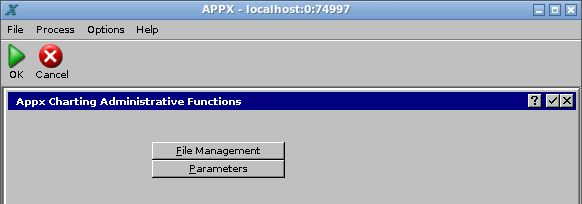
- On Appx Charting Examples, choose Appx Charting Admin Menu. The administration screen contains File Management and Parameters.
- Choose File Management. This menu preselects the one 0CD PARAM file. The screen should show 1 of 1 Files Currently Selected. If you need to check the file selection, choose File Selection, confirm 0CD PARAM, and return. Choose Create Files.
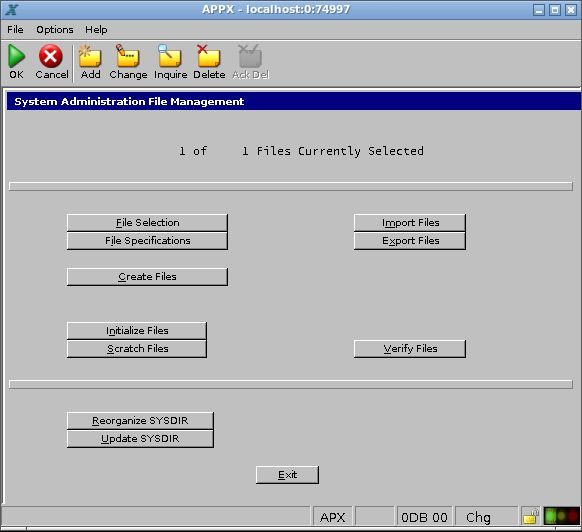
- Wait for the result. Created confirms a new parameter file. If the file already exists, retain it and its existing settings. File creation also establishes APPX's system-directory entry for the file.

- Close the result and leave File Management to return to Appx Charting Administrative Functions. Choose Parameters. This opens the shared 0CD parameter file used by the chart examples and chart API.
Enter the chart paths
The form has two pages. Enter the paths on the server running APPX. The following table gives the example locations from Chapters 2 and 3; your paths and default chart size may differ.
| Parameter | Linux example | Windows example |
|---|---|---|
| Default Image directory | /var/lib/appx-charts | C:\AppxData\Charts |
| PHP Library | /opt/ChartDirector/lib/phpchartdir.php | C:\AppxTools\ChartDirector\lib\phpchartdir.php |
| Finance PHP Library file | /opt/ChartDirector/lib/FinanceChart.php | C:\AppxTools\ChartDirector\lib\FinanceChart.php |
| Default Chart File Name Prefix | A short prefix such as CHART | A short prefix such as CHART |
| Default chart width and height | 300 and 300 are the shipped defaults | 300 and 300 are the shipped defaults |
The PHP Library setting is the full pathname of the PHP include file, not the extension DLL and not the PHP executable. The Finance library is a separate include used by financial charts; enter it on page 2 of the parameter form. Keep the next chart sequence number consistent with the installation's existing generated files; do not reset a shared live sequence while other sessions are rendering. Save the parameters, then establish a fresh test session.
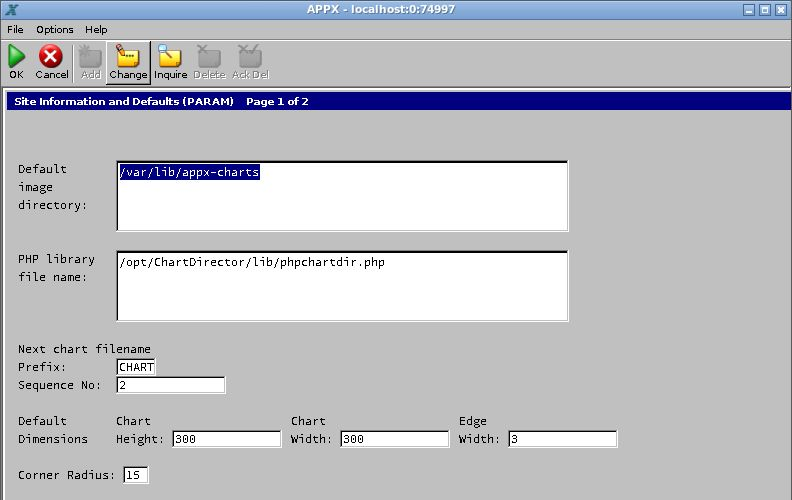
- If Parameters opens in Inquire mode, choose Change on the toolbar. On page 1, enter Default image directory and PHP Library file name. The first is the writable chart-output directory. The second is the complete filename ending in
phpchartdir.php. The screenshot uses Linux paths; on Windows enter the Windows paths from the table.
- Choose OK to continue to page 2. In the Finance Module library field, enter the complete path ending in
FinanceChart.php. This is a separate PHP include file supplied in the same ChartDirector library directory.
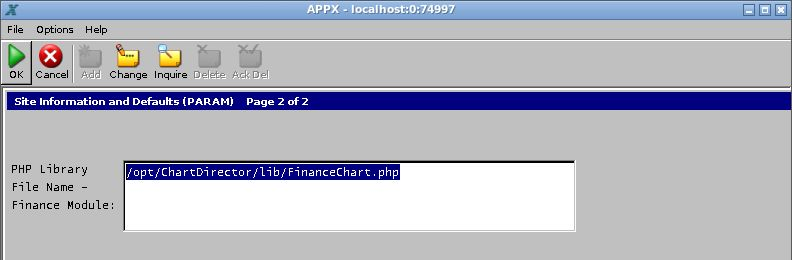
- Choose OK to save page 2 and finish the form. Reopen Parameters if you need to check the saved values. Saving only the first page leaves the financial-chart library setting incomplete.
Use a filesystem path to the PHP interface, not a browser URL. Make the chart directory writable by the session account. Confirm both settings in the same execution environment as the APPX engine, particularly when a container is used.