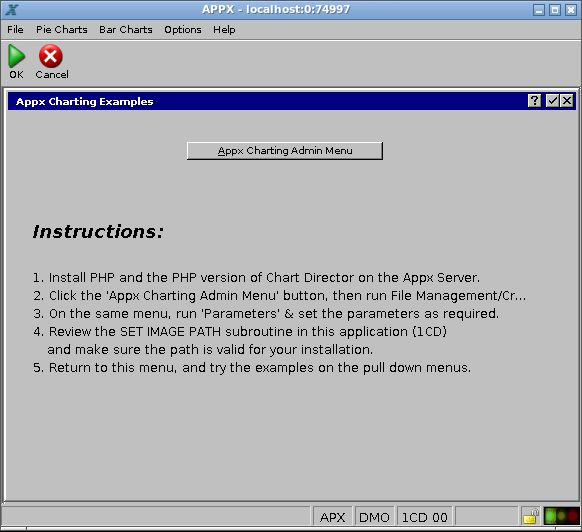
Chapter 5: Connect APPX to ChartDirector
Prepare the APPX Installation
Use the official APPX 5.5.4 engine, its matching utility applications and the APPX desktop client. For an existing APPX installation, confirm that applications 0CD and 1CD are present, then continue with the desktop walkthrough below. 0CD contains the chart API and shared parameters; 1CD contains the examples.
On Windows, run the APPX 5.5.4 32-bit server installer as an administrator and choose a dedicated installation directory. On Linux, use the console installer with -c. Check the installed engine with file /path/to/appx and inspect its dependencies with ldd /path/to/appx.
Run APPX 5.5.4 natively on Rocky 9, or inside the prepared Rocky 9 compatibility environment on Rocky 10. Both Linux installer labels deliver a 32-bit APPX engine.
The example downloads the installer labelled 64-bit. Verify it against the official release checksum manifest before running it.
cd /tmp
curl -fL -o appxsetup-linux-64.sh \
  https://www.appx.com/ftp/appx/products/appx/server/5.5.4/appxsetup-linux-64.sh
chmod +x appxsetup-linux-64.sh
./appxsetup-linux-64.sh -c
Your installation directory will probably differ from the example paths. Complete the installer's prompts, then start APPX for its normal system setup.
For a fresh system, complete normal APPX registration and system setup before continuing.
Open the ChartDirector examples
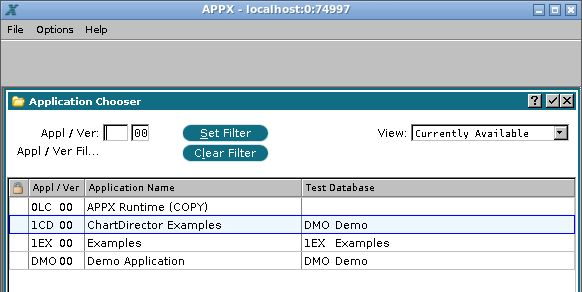
- From the APPX opening screen, choose Design an Application. In the Application Chooser, select ChartDirector Examples, application 1CD, version 00, and choose Open. The test database in these screenshots is DMO. Your database may differ; use the database associated with your installation of 1CD.
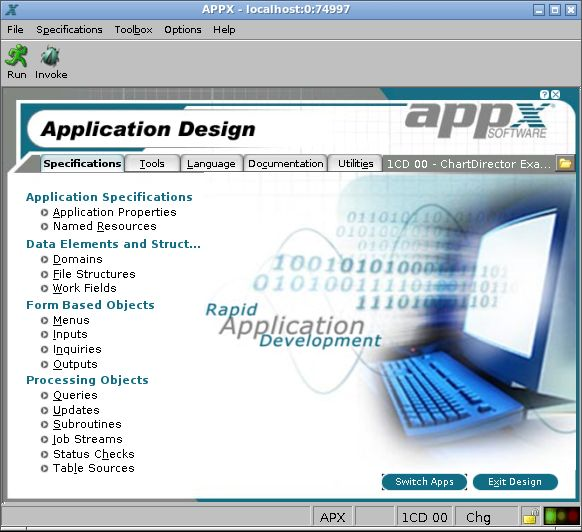
- On the Specifications tab of Application Design, double-click Menus under Form Based Objects.
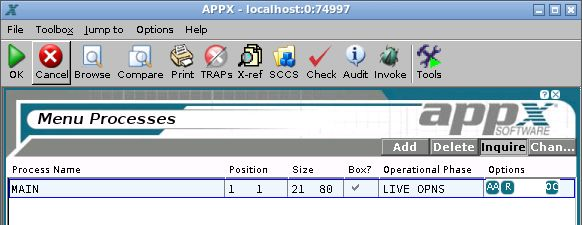
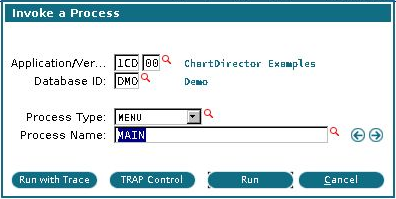
- Select the MAIN process. Choose Invoke on the toolbar.
- In Invoke a Process, confirm application 1CD, version 00, process type MENU, and process name MAIN. Leave the database set to your 1CD test database, then choose Run.
The Appx Charting Examples menu opens. Keep it open for the next steps.