
Chapter 5: Connect APPX to ChartDirector
Run a 1CD Example
- Leave the administration menu to return to Appx Charting Examples. Choose Cancel on the toolbar to close the examples menu. Close the Menu Processes list to return to Application Design.
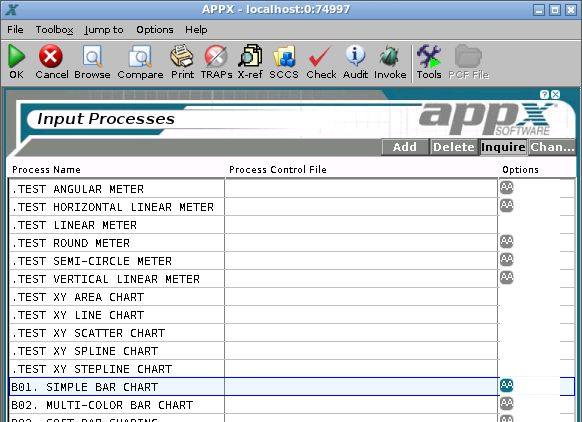
- Double-click Inputs under Form Based Objects. Select B01. SIMPLE BAR CHART, then choose Invoke on the toolbar.
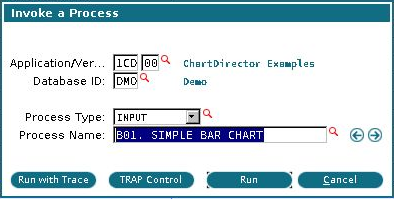
- In Invoke a Process, confirm application 1CD, version 00, your test database, process type INPUT, and process name B01. SIMPLE BAR CHART. Choose Run.
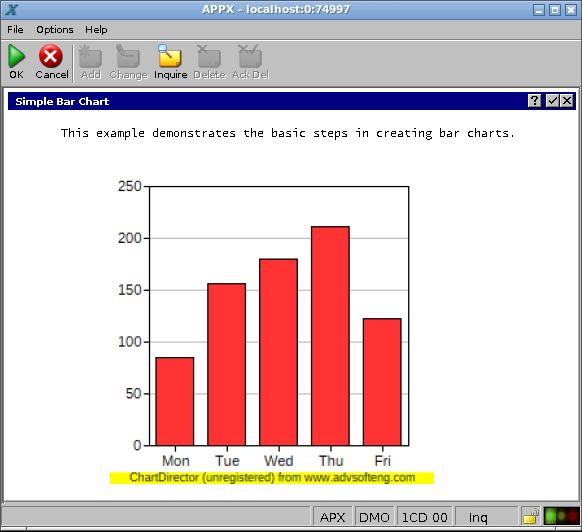
- The sample opens with a bar chart in the APPX screen. Confirm that the bars and labels are visible. This checks the complete path from APPX's chart API through PHP and ChartDirector to the desktop client's server-picture display.
- Check that a new PNG was written in the chart directory configured in Parameters. If rendering reports an error or the picture is blank, follow Capture a Render Failure before changing the sample.
- Close the sample and run it again. For your own application, also change a data value and check that the new image reflects that change.
The shipped B01. SIMPLE BAR CHART sets its own 250 by 250 size. The parameter form's default dimensions do not resize a sample that explicitly sets its dimensions. The standalone PHP test in Chapter 4 creates a separate 640 by 400 image.
If another sample uses icons or background pictures, review SET IMAGE PATH in 1CD and change its image directory to the location of those files on your server. A missing optional icon does not establish that PHP or ChartDirector failed to load.