
Chapter 6: Create Reports with Crystal Reports 2016
Create a COUNTRY Report
- Select Report wizard on the Crystal Reports start page.
- Expand Create New Connection → ODBC (RDO), choose AppxODBC, and select Next.
- Enter the APPX user and password and select Finish.
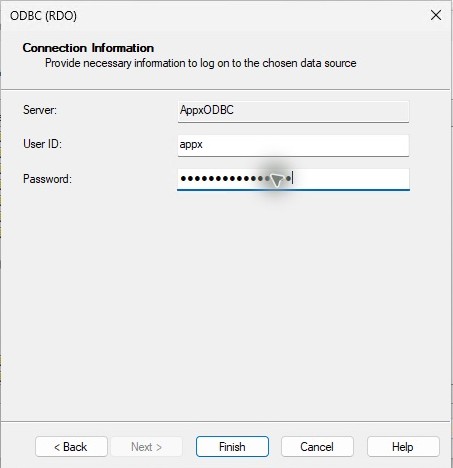
Server AppxODBC here names the ODBC data source. Its optional Service field can remain blank; the driver then uses the default sqlnw lookup to reach this gateway on TCP 1992. The provider dialog shown here does not display that field. DSN and connection fields.
- Expand appx, select dmo_dmo_country, and move it into Selected Tables with the right arrow.
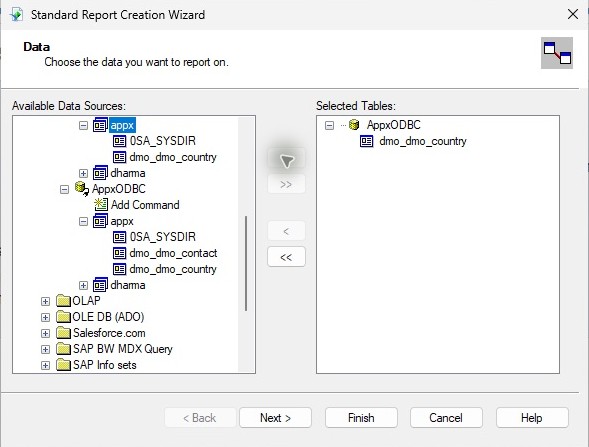
- Select Next, then add name, region_label, no_words and post_code_loc to Fields to Display.
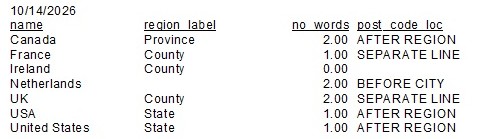
- Select Finish. The Preview displays 7 records with the four selected fields.
- Select File → Save As, choose a local folder and save
APPX-ODBC-COUNTRY.rpt. - To make a PDF, select File → Export → Export Report. Choose Adobe Acrobat (PDF) and Disk file, select OK, choose All pages, and save the PDF locally.
Verified result: the native report displays all seven records with the selected fields. The report-save and PDF-export route also completed.