
Chapter 4: Maintenance
Vendor Types File Maintenance
Use this function to enter or edit vendor types. Vendor type is useful in classifying your vendors. For example, you may want to differentiate between several classifications of vendors based on the volume of business such as "HIGH," "MED," and "LOW."
The Vendor Types Screen, shown in Figure 4-5 below, appears when you select Types from the File Maintenance Pulldown Menu. You normally enter this function in Inquire mode but you can change mode by using the mode icons on the toolbar or the mode function keys. Since Change mode places a hold on the selected record, use Change mode only when you intend to change data. If desired, in key entry, you can click on  or press the Scan key to review the records currently on file and select one for editing or viewing.
Vendor Types screen
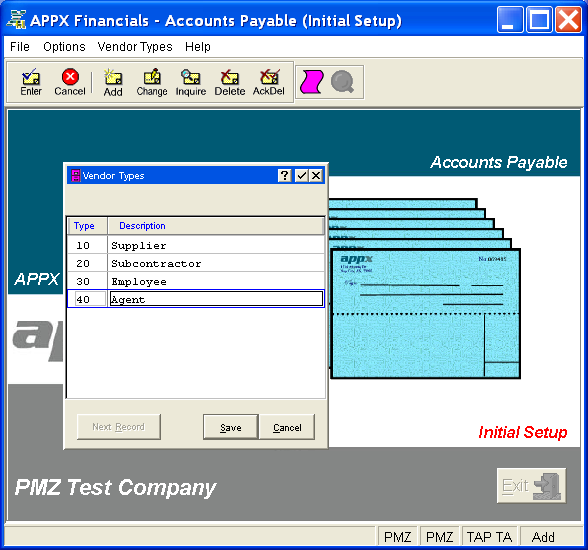
This is a scrolling screen which contains the following fields for each record:
- Type (required)
Enter a unique code for this vendor type, up to 4 characters in length. Vendor types may be used to group vendors by classification in order to sort and select records for reports, lists, and printed checks. Examples of a vendor type might be "GEN" for a "general distributor," "SPEC" for a "specialist," or "FOR" for a vendor located in a foreign country. Another example of classifying vendors might be based on the volume of business or the expected level of damaged goods.
- Description (required)
Enter a description for the vendor type, up to 30 characters in length.
Press ENTER or click  or the Save button to save the information for the current record. If any information has changed, the system may redisplay the screen to report any error or warning messages. If so, the current record has not yet been saved; you must address any concerns and press ENTER or click or the Save button again. To exit without saving, press END or click
  or the Cancel button.
The following icons are also available for use on the toolbar (unless disabled in Add mode or until a record has been selected):
 List Vendor Types: See Vendor Types List for further information.
 Display Vendor Type Audit Info: See Audit Info for further information.
Click the appropriate icon to perform the desired operation (which first saves the current record if applicable), after which you will return to where you are.