
Chapter 4: Maintenance
Vendor History Months Overlay
The Vendor History Months Overlay, shown in Figure 4-7a below, appears automatically when you save a record or when you click on the Months button from the Vendor History Screen in Vendor History File Maintenance. This overlay addresses vendor amounts by month (or period) associated with the current vendor/year but maintained in a separate file. You normally enter this level in the same mode you were in at the higher level (except you are converted to Add mode if no records exist in Change mode) but you can change mode by using the mode icons on the toolbar or the mode function keys. If desired, in key entry, you can click on  or press the Scan key to review the records currently on file and select one for editing or viewing.
This file stores purchase, disbursement, and discount information for each vendor by calendar month or fiscal period (according to the History by Calendar Month? selection in the Parameters file). Postings to 'EY' or end of year are stored as month 99. The Months of Vendor History field on the Parameters (Posting) Screen indicates how many months of history are maintained in Live Operations. Obsolete records are deleted during end of month processing.
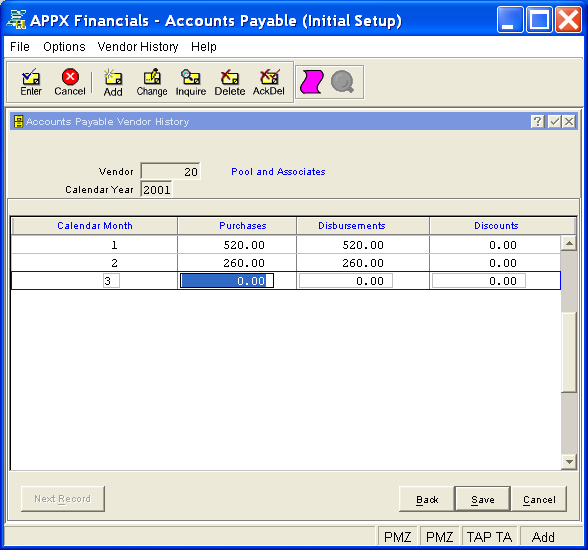
This is a scrolling overlay which contains the following fields for each calendar month or fiscal period associated with the current vendor/year (identified at the top of the screen).
- < Calendar Month/Fiscal Period> (required)
Enter the calendar month or fiscal period as appropriate. The content and label for this field is based on what method you selected for keeping history (see History by Calender Month? on the Parameters (Posting) Screen). Enter "99" to signify end of year or 'EY' postings.
- Purchases
Enter the amount of purchases, if any, from this vendor for the designated month or period (with up to 9 digits to the left of the decimal and 2 digits to the right, plus a "-" if needed for a negative amount). Purchase amounts in this file are normally positive.
- Disbursements
Enter the amount of disbursements, if any, to this vendor for the designated month or period (with up to 9 digits to the left of the decimal and 2 digits to the right, plus a "-" if needed for a negative amount). Disbursement amounts in this file are normally positive.
- Discounts
Enter the amount of discounts, if any, for this vendor for the designated month or period (with up to 9 digits to the left of the decimal and 2 digits to the right, plus a "-" if needed for a negative amount). Discount amounts in this file are normally negative.
Press ENTER or click  or the Save button to save the information for the current calendar month or fiscal period. If any information has changed, the system may redisplay the screen to report any error or warning messages. If so, the current record has not yet been saved; you must address any concerns and press ENTER or click or the Save button again. To exit without saving, press END or click
  or the Cancel button. When the record has been saved, you will go on to the next record at this level, if any.
When you have finished with the records at this level (or to prevent saving the current record), click the Back button to return to the Vendor History Screen for the current vendor/year or press END or click or the Cancel button to go on to the next vendor/year, if any.
The following icons are also available for use on the toolbar (unless disabled in Add mode or until a record has been selected):
 List Vendor History: See Vendor History List for further information.
 Display Vendor History Months Audit Info: See Audit Info for further information.
Click the appropriate icon to perform the desired operation (which first saves the current record if applicable), after which you will return to where you are.