
Chapter 4: Maintenance
Recurring Payments Line Items Overlay
The Recurring Payments Line Items Overlay, shown in Figure 4-8a below, appears automatically when you save a record or when you click on the Line Items button from the Recurring Payments Screen in Recurring Payments File Maintenance. This overlay addresses line item detail associated with the current recurring payment record but maintained in a separate file. You normally enter this level in the same mode you were in at the higher level (except you are converted to Add mode if no records exist in Change mode) but you can change mode by using the mode icons on the toolbar or the mode function keys. If desired, in key entry, you can click on  or press the Scan key to review the records currently on file and select one for editing or viewing.
When recurring payments are generated in Live Operations, the system creates an invoice line item for each recurring payment line item. The total line item amount should balance to the amount specified in the recurring payment record.
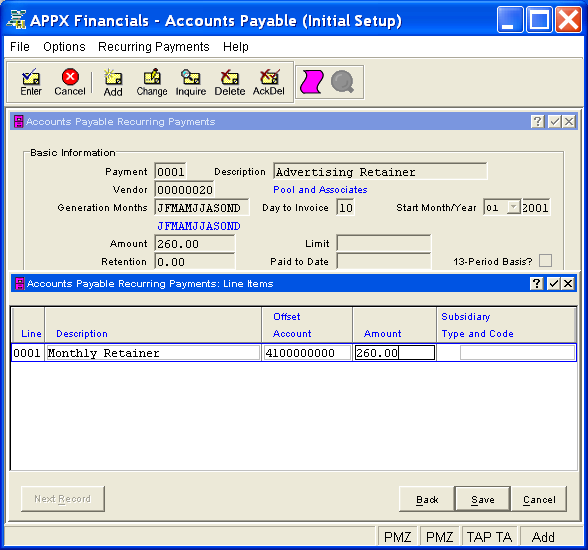
This is a scrolling overlay which contains the following fields for each line item associated with the current recurring payment (identified at the top of the screen).
- Line (required)
This field contains a sequence number (with up to 4 digits) to identify the line item. The system automatically assigns the next available number beginning with `1' and this number cannot be modified.
- Description
If desired, enter a description for the line item, up to 30 characters in length.
- Offset Account
Enter the offset (expense) account to post for this line item, up to 12 characters in length. The initial default is the expense account, if any, defined on the Vendors (Invoicing Information) Screen but it can be overridden.
If General Ledger is part of your system, this account number must be on file in the General Ledger Chart of Accounts file. You can click on
or press the Scan key to find an appropriate entry. The system displays the account description so that you can verify your entry.- Amount
Enter the amount (with up to 7 digits to the left of the decimal and 2 digits to the right, plus a "-" if needed for a credit amount) of the line item to be generated. The total of this amount for all line items for the recurring payment should match the amount specified on the Recurring Payments Screen.
- Subsidiary Type
If General Ledger is part of your system, the subsidiary type defined for the account in Chart of Accounts File Maintenance is displayed and cannot be modified.
If General Ledger is not part of your system, you can enter any 2-letter value in this field. Transactions posted to various subsidiary types and codes will print on the Subsidiary Codes GL Distributions report accessed from the Monthly pulldown menu in Live Operations.
- Subsidiary Code
If Subsidiary Type on this overlay is blank, you cannot enter a subsidiary code; conversely, if Subsidiary Type is not blank, you must enter a subsidiary code (up to 16 characters in length).
If the Subsidiary Type defined in General Ledger for the account is "GL" (signifying General Subsidiary), the subsidiary code you enter must be on file for this account in the Subsidiary Codes by Account file. You can press the Scan key to find an appropriate entry.
Press ENTER or click  or the Save button to save the information for the current line item. If any information has changed, the system may redisplay the line item to show any new or changed system-supplied items or to report any error or warning messages. If so, the current line item has not yet been saved; you must address any concerns and press ENTER or click or the Save button again. When the line item has been saved, you will go on to the next line item, if any.
When you have finished with the line items associated with the current recurring payment (or to prevent saving the current line item), click the Back button to return to the Recurring Payments Screen for the current payment or press END or click  or the Cancel button to go on to the next payment, if any.
The following icons are also available for use on the toolbar (unless disabled in Add mode or until a record has been selected):
 List Recurring Payments: See Recurring Payments List for further information.
 Display Line Item Audit Info: See Audit Info for further information.
Click the appropriate icon to perform the desired operation (which first saves the current record if applicable), after which you will return to where you are.