
Chapter 3: Recovery Processing
Option 1Sales Orders
This function allows entry and maintenance of Open Orders records.
Select “Sales Orders” from the Recovery Processing menu. The first Sales Orders screen is shown below:
Recovery Processing Sales Orders screen, part 1 of 2
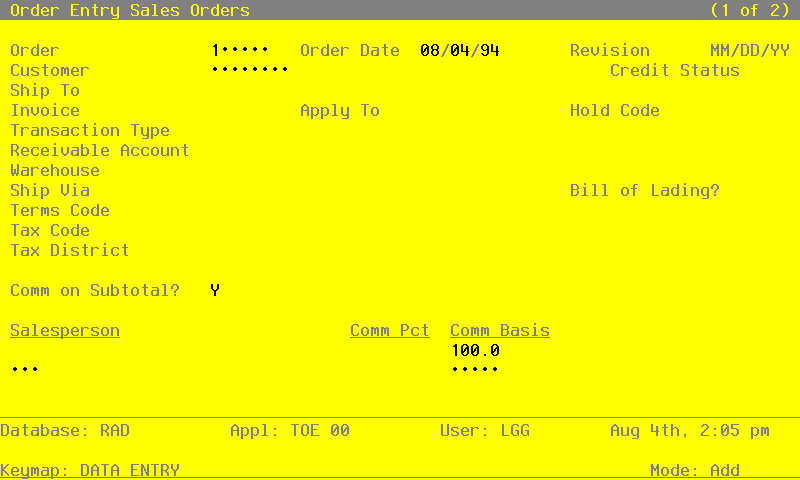
Certain entries on this screen will be automatically displayed. In most cases, the displayed entry can be changed. If an asterisk (*) appears next to one of the fields listed below, it indicates a “display only” field, which cannot be changed.
Certain fields on the screen are not used if the Commission Accounting application is not part of the system. In this case, you do not need to make entries in these fields.
When the key value for a particular record is requested, you can review all the records in the file by selecting the Scan option. The records will be presented on an “Access” screen, and you will be allowed to scan the available data until you find the record you want. Then, position the cursor by that record and press RETURN; the record will be displayed for editing.
Data items for the preceding screen are described below:
- Order
Enter up to 6 digits to identify the order you wish to view or change. You can use the Scan option to find an appropriate entry. To add an order, you may enter a unique order number or, if you leave this entry blank, the system will automatically apply the next available order number.
- Order Date
This field specifies the date on which the sales order is placed. The system defaults today’s date. You may accept the default or enter a different date.
- Revision*
During the Invoices post procedure, the system sets a revision date for any backorders. Each time the order is backordered, the system updates this record and displays the last date of the revision in this field.
- Customer
Enter a code to identify the customer who placed the sales order. You can use the Scan option to find an appropriate entry. This number must be on file in the Accounts Receivable Customers file. The system displays the corresponding name so that you may verify your entry.
- Credit Status*
The system displays the customer’s credit status code from the Accounts Receivable Customers record. These codes can only be changed on that record and include:
- NO
- The customer’s Balance exceeds the customer’s Credit Limit.
- OK
- The customer’s Credit Limit is not exceeded.
- BAD
- For some reason other than Credit Limit, this customer is considered to be a poor credit risk.
- Ship To
If an Addresses record exists for the customer with a “ship to” of ‘1’, the system displays ‘1’ as the shipping address used when sales order merchandise is shipped to the customer. You may change the display. The system displays the corresponding name from the Addresses file so that you may verify your entry.
If you do not want to ship to any of the addresses for the customer in the Addresses file or to the address on the Accounts Receivable Customers record, leave this field blank. Or, you can use the Scan option to find an appropriate entry.
- Invoice*
During invoice printing, the system assigns a number to this order. The system displays that number here However, if an invoice form has not been printed yet for this order, this field will be blank.
- Apply To
If this sales order is to be applied to an existing invoice, enter that invoice number. If not, leave this field blank and the system will default the invoice number to this field during the Invoices Post to Accounts Receivable. (For a complete explanation of the Deposit and Apply To fields, refer to the Special Considerations section in the “User’s Manual: Initial Setup”.)
- Transaction Type
The system displays ‘1’ to indicate that the transaction is a sales order. You may override the display by entering one of the following codes:
- 1
- Sales Order
- 2
- Debit Memo
- 3
- Credit Memo
- Hold Code
Enter 1 character to indicate that this order is on hold (no sales permitted).
You may define one or more values for this field, but remember that if you make any entry here, the system will prevent you from entering a ship date (during Sales Order or Shipping Confirmation entry) and will impose a hold on the customer’s order.
If the order is not on hold, leave this field blank.
- Receivable Acct
This is the account to be debited for the transaction. You can use the Scan option to find an appropriate entry. The system displays the Receivable Acct set up for this customer in the Accounts Receivable Customers file. You may enter a new receivable account.
If General Ledger is part of your system, the account number you enter must be on file in the Chart of Accounts file. The system displays the description from that file so that you can verify your entry.
- Warehouse
This field identifies the warehouse that supplies the merchandise to be shipped to the customer. You can use the Scan option to find an appropriate entry. The system displays the warehouse number from either the Addresses record (if a “ship to” was entered on this record), or from the Accounts Receivable Customers record. The corresponding description is displayed from the Inventory Control Warehouses file.
If you change the display, the new number must be on file in the Inventory Control Warehouses file.
- Ship Via
The Ship Via identifies the shipper who is to ship merchandise to this customer. You can use the Scan option to find an appropriate entry. The system displays a code from the Addresses record, if a “ship to” was entered on this record. The corresponding name is displayed from the Shippers file.
If you change the Ship Via code, the new code must be on file in the Shippers file.
You may leave this field blank.
- Bill Of Lading?
This field indicates whether or not a bill of lading is to be printed for this order. The system displays ‘Y’ or ‘N’. You may change the display.
- Y
- A bill of lading is to be printed for this order.
- N
- A bill of lading is not to be printed for this order.
- Terms Code
This field identifies the terms for this customer. You can use the Scan option to find an appropriate entry. The system displays a code from the Accounts Receivable Customers record. The corresponding description is displayed from the Accounts Receivable Terms file.
If you change the terms code, the new code must be on file in the Account Receivable Terms file.
- Tax Code
This field identifies the sales tax code for this customer. You can use the Scan option to find an appropriate entry. The system displays a code from either the Addresses record (if a “ship to” was entered on this record), or from the Accounts Receivable Customers record. The corresponding description is displayed from the Accounts Receivable Sales Tax Codes file.
If you change the tax code, the new code must be on file in the Accounts Receivable Sales Tax Codes file.
- Tax District
This field identifies the taxing district for this customer. The system displays a code from either the Addresses record (if a “ship to” was entered on this record), or from the Accounts Receivable Customers record. The corresponding description is displayed from the Accounts Receivable Sales Tax Codes file.
If you change the tax district, the new district must be on file in the Accounts Receivable Sales Tax Codes file.
- Comm on Sub?
This field specifies the base on which commissionable dollars are to be calculated. The default is ‘Y’. You may change this display by entering:
- Y
- The invoice Subtotal amount
N: The line item (depending on the commission method selected for the line item). If you do not want to calculate commissions for the order, enter ‘Y’ in this field and zeros for the commission percents. If you do not want to calculate commissions for a particular line item, enter ‘N’ in this field and leave the Commission Method blank on the line item.
- Salesperson
If the commission is to be split between two salespeople, you may enter a code in each Salesperson field to identify the salesperson who made or received credit for the sale. You can use the Scan option to find an appropriate entry. If a salesperson was entered on the customer’s Addresses or Accounts Receivable Customers record, the system displays the salesperson number from one of those records in the first Salesperson field. The corresponding name is displayed from the Commission Accounting Salespersons file. You may override the display.
If your system includes Commission Accounting, each number you enter must be on file in the Salespersons file.
If your system does not include Commission Accounting, these fields may be used for your information.
- Comm Pct
These fields specify the percentage used to calculate the commission earned by the salesperson you entered.
If your system includes Commission Accounting, the Commission Percent is displayed from the Commission Accounting Salespersons record. You may enter up to 3 digits and 1 decimal to override the display.
If you do not want to calculate commissions for the order, enter ‘0’ in both these fields.
If your system does not include Commission Accounting, this field may be used for your information.
- Comm Basis
Enter up to 3 digits and 1 decimal for the percentage of the commissionable dollars that each salesperson is allocated for this order.
If Commission Accounting is part of the system, the first entry defaults to ‘100’ and the second to ‘0’. You may override these defaults. If your system does not include Commission Accounting, no defaults will appear.
If the commission is to be split between two salespeople, the first entry would represent the percentage that the first salesperson would receive, and the second entry would represent the percentage that the second salesperson would receive.
These entries do not need to add up to 100.
Press RETURN to save the information on this screen and to go on to the second Sales Orders screen. Here is the second Sales Orders screen:
Sales Orders screen, part 2 of 2
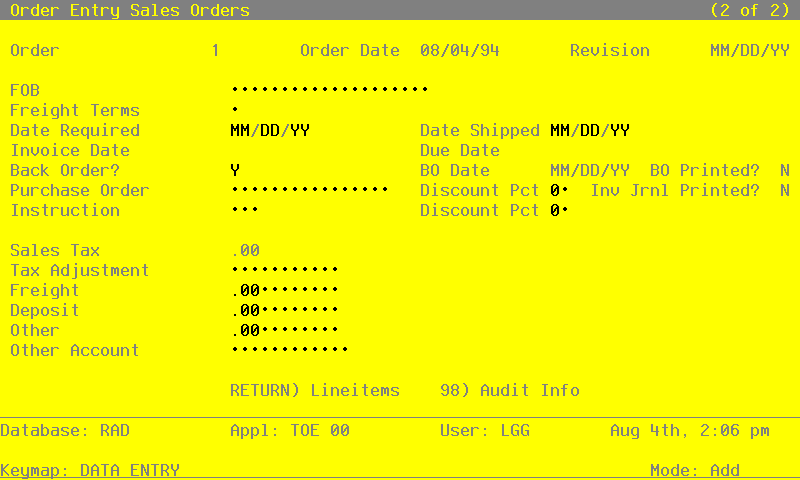
Certain entries on this screen will be automatically displayed. In most cases, the displayed entry can be changed. If an asterisk (*) appears next to one of the fields listed below, it indicates a “display only” field, which cannot be changed.
When the key value for a particular record is requested, you can review all the records in the file by selecting the Scan option. The records will be presented on an “Access” screen, and you will be allowed to scan the available data until you find the record you want. Then, position the cursor by that record and press RETURN; the record will be displayed for editing.
Data items for the preceding screen are described below:
- Order*
The system displays the order number entered on the first screen.
- Order Date*
The system displays the Order Date entered on the first screen.
- FOB
Enter up to 20 characters to identify the point of title transfer or the shipping point from which freight will be charged for the order.
This entry is printed on the sales order form, invoice form, and bill of lading.
- Freight Terms
Enter a code to identify the freight terms to be used when shipping this sales order merchandise. Choices are:
- 1
- Prepaid
- 2
- Collect
- 3
- Prepaid/Charge to Customer
The corresponding description is displayed so that you may verify your entry. Although this field is required, it is for your information only. The freight terms are printed on the bill of lading.
- Date Required
Enter the date the customer requires the ordered merchandise.
- Date Shipped
Enter the date the merchandise was or will be shipped to the customer. As an alternative to using the Shipping Confirmation function, you can make an entry here and the order will be invoiced when invoices are printed.
However, if a Hold Code is specified for this customer’s order, the system will prevent you from entering a ship date at this time and during Shipping Confirmation entry.
- Invoice Date
The system assigns and displays the date on which the invoice (for the order) was printed.
If you wish to reprint the invoice for this order with a different date, you have two choices:
- Enter a new date which will be printed on the new invoice (regardless of when you print invoices); or
- Blank out the present date, which will allow the system to default the current system date on which the new invoice is printed.
- Due Date
When invoices are printed, the system calculates the Due Date based on the invoice date and the terms set up on the order record. Each time invoices are printed for this order, the Due Date is recalculated based on the invoice date.
- Back Order?
This field indicates whether or not items on this sales order may be backordered. The entry you make here serves as the default on the line item record. The default is ‘Y’. You may change the display.
- Y
- Items on this sales order may be backordered.
- N
- Items on this sales order may not be backordered.
This field may also be modified through the Shipping Confirmation Entry program.
- BO Date*
The system displays the date on which the order was backordered. This date is set when invoices are posted and an order revision is created.
- BO Printed?*
The system sets this field to ‘Y’ when you print a backorder or sales order form for this order.
- Purchase Order
Enter up to 16 characters to indicate the customer’s purchase order number. If a purchase order does not apply, you may enter a description here for your information.
- Discount Pct
Enter up to 2 digits for each discount percentage to be applied against the sales order. Two fields are provided so that you may enter a “chain” discount. If a second discount is entered, it is applied to the subtotal generated after the first discount was taken.
During the invoices posting procedure, these discounts are posted to the Customer Discount Account in the Accounts Receivable Parameters file.
- Inv Jrnl Printed?*
The system displays ‘Y’ or ‘N’ to indicate whether an Invoices journal has been printed without error for this record.
- Instruction
Enter a code from the Special Instructions file to specify any special instructions to be appended to this sales order. You can use the Scan option to find an appropriate entry. The system displays the corresponding description so that you may verify your entry.
These instructions apply to the entire order and are printed 1 inch below the last line item printed on the sales order form, invoice form, and shipping papers.
This field may also be modified through the Shipping Confirmation program.
- Sales Tax*
If sales tax is to be charged for this order, the system calculates and displays that amount based on the rate for the sales tax code, the district entered for the order, and the entry made in the Taxable? field for the line item. (Rate is designated on the district record in Accounts Receivable.)
The system calculates and updates this amount when sales order forms and invoice forms are printed.
- Tax Adjustment
If you want to change the computed sales tax amount displayed in the Sales Tax field and printed on the sales order form or invoice form, you may enter up to 5 digits and 2 decimals, positive or negative, to adjust the amount.
When the sales order forms, invoice forms, and journals are printed, the printed sales tax amount is the sum of the computed sales tax and the tax adjustment.
- Freight
If there are any freight charges, enter up to 7 digits and 2 decimals for the amount.
During the invoices posting procedure, this amount is posted to the Freight Out Account in the Accounts Receivable Parameters file.
This field may also be modified through the Shipping Confirmation function.
- Deposit
If the customer has included a deposit with this sales order, you may enter up to 7 digits and 2 decimals for the amount.
During Invoices post, this amount is posted to the Deposit Account in the Accounts Receivable Parameters file.
You must still enter a cash receipt for the deposit using the Accounts Receivable Cash Receipts program. For a complete explanation of the Deposit and Apply To fields, refer to the Special Considerations section in Chapter 1 beginning on Page 4.
- Other
If there are any “other” charges, enter up to 7 digits and 2 decimals for the amount.
This field may also be modified through the Shipping Confirmation program.
- Other Account
Enter the account number that you want to credit for the Other amount. You can use the Scan option to find an appropriate entry. If your system includes General Ledger, this account number must be on file in the Chart of Accounts file. The system automatically displays the account description so that you may verify your entry.
Select the Next Record option to go to the next Sales Orders screen.
At this screen the use of the MODE keys—ADD, DEL, CHG, or INQ—pertain to those records in the Sales Orders file.
When this record is complete, press RETURN to save the record and display the Line Items screen.
A sample line items screen is shown below.
Sales Order Line Items screen
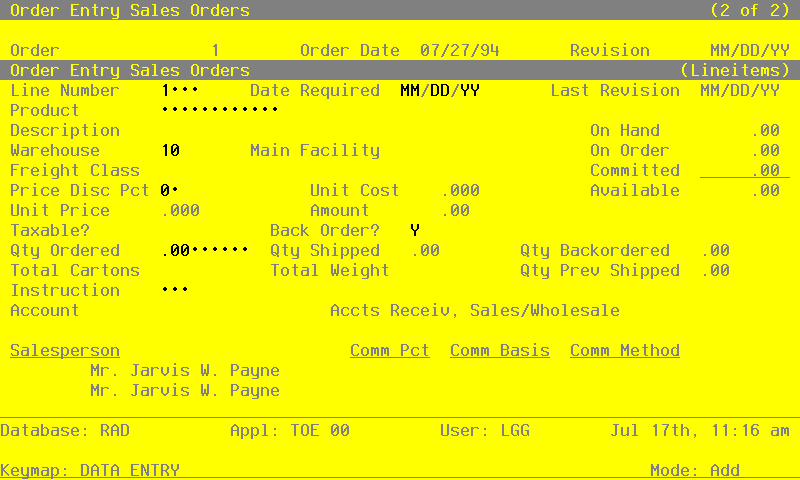
Certain entries on this record will be automatically displayed. In most cases, the displayed entry can be changed. If an asterisk (*) appears next to one of the fields listed below, it indicates a “display only” field, which cannot be changed.
Certain fields on the record are not used if the Commission Accounting application is not part of the system. In this case, you do not need to make entries in these fields.
When the key value for a particular record is requested, you can review all the records in the file by selecting the Scan option. The records will be presented on an “Access” screen, and you will be allowed to scan the available data until you find the record you want. Then, position the cursor by that record and press RETURN; the record will be displayed for editing.
Data items for the preceding screen are described below:
- Order*
The system displays the Order from the header record.
- Order Date*
The system displays the Order Date from the header record.
- Line Number
The system automatically numbers line items in sequence beginning with ‘1’. Each line item must be identified by a unique number.
- Date Required
The system displays the Date Required entered on the header record. If a date was not entered on the header record or if you wish to specify a different required date for this line item, you may enter a new date.
- Last Revision*
During the Invoices post procedure, the system sets a revision date for any backorders. Each time a line item on an order is backordered, the system updates this record and displays the date of the last revision in this field.
- Product
Enter up to 12 characters to identify the product included on this sales order line item. You can use the Scan option to find an appropriate entry.
This number must be on file in the Inventory Control Products file. The combination of this number and the Warehouse (see below) must be on file in the Products By Warehouse file.
This field may be left blank for non-inventory items.
- Description
The system displays the product Description from the Inventory Control Products file so that you may verify your entry in the Product field. In this case, you cannot change the display.
If the Product field is left blank, you must enter up to 30 characters to describe this line item.
- On Hand*
The system displays the On Hand Qty from the Inventory Control Products By Warehouse record. This field enables you to view the number of stockkeeping units of the product that are currently on hand at this warehouse.
- Warehouse
The system displays, from the sales order header record, the warehouse that supplies the product to be shipped to the customer. The corresponding description is displayed from the Warehouses file so that you may verify your entry. You may override the display. You can use the Scan option to find an appropriate entry.
This number must be on file in the Inventory Control Warehouses file. The combination of this number and the Product must be on file in the Products By Warehouse file.
If the Product field was left blank for non-inventory items, you may also leave this field blank.
- On Order*
The system displays the On Order quantity from the Inventory Control Products By Warehouse record. This field enables you to view the number of stockkeeping units of the product that are currently on order at this warehouse.
- Freight Class
This field indicates the freight class used to ship this product to the customer. If a product was identified for this line item, the system defaults the Freight Class entered for this product on the Inventory Control Products record. The corresponding description is displayed from the Freight Classes file. You may override the display. You can use the Scan option to find an appropriate entry.
The freight class is printed on the bill of lading.
- Committed*
The system displays the Committed quantity from the Inventory Control Products By Warehouse record. This field enables you to view the number of stockkeeping units of the product that have been committed (sales orders not yet shipped) from this warehouse.
- Price Disc Pct
If the customer is to receive a discount on the selling price (Unit Price) of this product, enter up to 2 digits to indicate the percentage. The percentage entered in this field is not posted to a General Ledger account. This percentage is an adjustment or reduction to the price and is used in arriving at the extended amount of the line item.
- Unit Cost
The Unit Cost field specifies the cost per stockkeeping unit (purchase price plus any inventoriable costs) for this product. If both a product and a warehouse were entered for this line item, the system defaults this field from the Inventory Control Products By Warehouse file. You may enter up to 6 digits and 3 decimals to override the display.
Keep in mind that this cost is an approximation of the value that will be used for the actual Cost of Goods Sold entry during Invoices post. During the post, the system will default the most current cost from either the Products By Warehouse file or the Product Purchases holding file, depending on the costing method selected in Inventory Control.
- Available*
The system calculates and displays the number of stockkeeping units for the product, which are available at this warehouse. This formula is expressed below:
Available = On Hand + On Order - Committed
- Unit Price
The Unit Price specifies the amount charged per stockkeeping unit (that is, the selling price) of the product. If both a product and a warehouse were entered for this line item, this display is defaulted from the Inventory Control Products By Warehouse file. You may enter up to 6 digits and 3 decimals to override the display.
If special customer pricing has been stipulated for this product/customer combination in the Inventory Control Product Discounts By Customer file, the system adjusts the unit price according to this special pricing definition and displays the adjusted value in the Unit Price field.
However, to use this special customer pricing, the date entered in the Pricing Expires field (on the Product Discounts By Customer record) must not be earlier than the order date.
- Amount*
The system calculates and displays the amount of this line item by multiplying the Unit Price by the Qty Ordered, and discounting the resulting amount by the Price Disc Pct. The invoice subtotal, which is printed on most of the forms and reports, represents the sum of all the Amount fields for all the line items.
- Taxable?
This field indicates whether or not this item is taxable. The system displays the value set up for this product/warehouse combination on the Inventory Control Products By Warehouse record. You may override the display by entering:
- Y
- This item is taxable.
- N
- This item is not taxable.
- Back Order?
Depending on the entry made on the Sales Orders header record, the system displays ‘Y’ or ‘N’ to indicate whether or not this particular line item may be backordered for this order. You may change this display.
- Y
- This item may be backordered.
- N
- This item may not be backordered.
This field may also be modified through the Shipping Confirmation function.
- Qty Ordered
Enter up to 5 digits and 2 decimals for the number of stockkeeping units ordered. For a credit memo, enter a negative amount here.
- Qty Shipped
The system defaults the amount that you entered in the Qty Ordered field. Enter up to 5 digits and 2 decimals to specify the actual quantity shipped.
This field may also be modified through the Shipping Confirmation function.
- Qty Backordered
If the quantity ordered is not equal to the quantity shipped, the system calculates and displays the quantity backordered as: Qty Ordered - Qty Shipped
However, if the Back Order? field is set to ‘N’, this field defaults to zero. You may enter up to 5 digits and 2 decimals to override the display.
This field may also be modified through the Shipping Confirmation function.
- Total Cartons
This field indicates the total number of cartons containing this product required by the line item. The system calculates and displays this amount based on the UM per Ship Carton entered for this product/warehouse combination on the Inventory Control Products By Warehouse record: Total Cartons = Qty Ordered / UM per Ship Carton
You may enter up to 5 digits and 2 decimals to override the display.
- Total Weight
This field indicates the total weight of the cartons containing this product required by the line item. The system calculates and displays this amount based on the Shipping Weight entered for this product on the Inventory Control Products By Warehouse record:
Total Weight = Total Cartons x Shipping Weight
You may enter up to 5 digits and 2 decimals to override the display.
- Qty Prev Shipped*
For products that have been invoiced and only partially shipped, the system displays the accumulated quantity previously shipped to the customer.
- Instruction
Enter a code from the Special Instructions file to specify any special instructions to be appended to this line item. You can use the Scan option to find an appropriate entry. The system displays the corresponding description so that you may verify your entry.
These instructions are printed directly below the line item on the sales order form, invoice form, and shipping papers.
This field may also be modified through the Shipping Confirmation function.
- Account
Enter the General Ledger sales account number to be credited when the line item Amount is posted. You can use the Scan option to find an appropriate entry. If the General Ledger application is part of your system, this account number must be on file in the General Ledger Chart of Accounts file. The corresponding description is displayed so that you may verify your entry.
If a product was entered for this line item, the account number defaults from the Inventory Control Product Classes file.
- Salesperson
This field identifies the salesperson who made or received credit for the line item. You can use the Scan option to find an appropriate entry if Commission Accounting is part of your system. If you entered ‘Y’ for Comm on Sub? on the Sales Orders header record, you cannot make an entry in this field. If you entered ‘N’ for Comm on Sub?, the Salesperson will default from the header record. You may enter up to 3 digits for each salesperson to override the display.
If Commission Accounting is part of the system, each number that you enter must be on file in the Salespersons file. The system displays the corresponding name(s) so that you may verify your entry.
If your system does not include Commission Accounting, this field may be used for your information.
- Comm Pct
This field identifies the percentage used to calculate the salesperson commission on this line item. If you entered ‘Y’ for Comm on Sub? on the Sales Orders header record, you cannot make an entry in this field. If you entered ‘N’ for Comm on Sub?, the commission percent will default from the header record. You may enter up to 3 digits and 1 decimal to override the display.
If a salesperson/product class combination is on file for this salesperson in the Commission Accounting Sales Classes file, the commission percent will default from that file.
If your system does not include Commission Accounting, this field may be used for your information.
- Comm Basis
This field indicates the percentage of the commissionable dollars that is allocated to each salesperson for the line item. If you entered ‘Y’ for Comm on Sub? on the Sales Orders header record, you cannot make an entry in this field. If you entered ‘N’ for Comm on Sub?, the commission basis will default from the header record.
If Commission Accounting is part of the system and you did not make an entry for this salesperson on the header record, the first entry defaults to ‘100’ and the second to ‘0’. You may enter up to 3 digits and 1 decimal to override these defaults. If your system does not include Commission Accounting, no defaults will appear.
If the commission is to be split between two salespeople, the first entry would represent the percentage that the first salesperson would receive, and the second entry would represent the percentage that the second salesperson would receive.
These entries do not need to add up to 100.
- Commission Method
This field identifies the method used to calculate the commissionable dollars for each salesperson. If a salesperson/product class combination is on file for this salesperson in the Commission Accounting Sales Classes file, the Commission Method will default from that file. You may override the display by entering one of the following codes:
“ ”: If blank, commissions will not be calculated
- S
- The selling price
- P
- The product commission amount
- G
- The gross margin (that is, the difference between the selling price and the cost)
The following table outlines the fields that each commission method is based upon.
- S
- Amount = (Unit Price x Quantity x Price Disc Pct)
- P
- Commission Amount (in the Inventory Control Products file)
- G
- Amount - (Quantity x Cost)
The entered data is validated. Press RETURN to display system-supplied information, and then press RETURN again to save the contents of this screen.
Select the Previous Image option to go back to the current Sales Orders screen. Select the Next Record option to go to the next Line Items screen. Select the END option to go to the next Sales Order screen.
At this screen the use of the MODE keys—ADD, DEL, CHG, or INQ—pertain to those records in the Sales Orders Line Items file.