
1Initial Setup File Maintenance
Option 2Sales History
Before Live Operations begins, you have the option of entering summarized sales history information into this Sales History file. If you choose to use this program, please refer first to the Special Considerations section of this manual for a detailed explanation and example as to how you might set up and maintain these records. If you choose not to enter summarized sales history information into this file, you should not use the Opening Entries program to enter opening transactions into the Sales Detail file.
For each customer/product/salesperson combination for which you wish to maintain a historical sales record, enter sales, commission, margin and units information by calendar month and year. The system will store this history for the period of time specified in the Parameters file.
Once Sales Analysis goes into the Live Operations phase, this file will become inaccessible, and summarized transaction history posted from Accounts Receivable, Order Entry, and Commission Accounting will build in this file.
Here is the Sales History screen:
Initial Setup Sales History screen
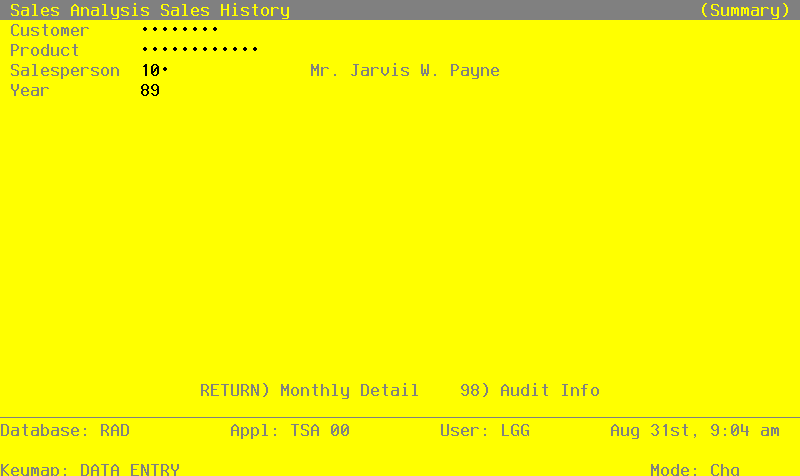
When the key value for a particular record is requested, you can review all the records in the file by selecting the Scan option. The records will be presented on an “Access” screen, and you will be allowed to scan the available data until you find the record you want. Then, position the cursor by that record and press RETURN; the record will be displayed for editing.
Data items for the preceding screen are described below:
- Customer
Enter a code to identify the customer for whom the Sales History record is to be maintained. You can use the Scan option to find an appropriate entry. If your system includes the Accounts Receivable application, this number must be on file in the Customers file. The system displays the customer’s name so that you may verify your entry.
If the Sales History record is not to be identified by a single, unique customer, leave this field blank.
- Product
Enter a code to identify the product for which the Sales History record is to be maintained. You can use the Scan option to find an appropriate entry. If your system includes the Inventory Control application, this number must be on file in the Products file. The system displays the corresponding description so that you may verify your entry.
If the Sales History record is not to be identified by a single, unique product, leave this field blank.
- Salesperson
Enter a code to identify the salesperson for whom the Sales History record is to be maintained. You can use the Scan option to find an appropriate entry. If your system includes the Commission Accounting application, this number must be on file in the Salespersons file. The system displays the salesperson’s name so that you may verify your entry.
If the Sales History record is not to be identified by a single, unique salesperson, leave this field blank.
- Year
Enter 2 digits for the calendar year to which the following monthly sales records apply.
The entered data is validated. Press RETURN to save the information on this screen.
Select Next Record to go to the next Sales History record.
At this screen the use of the MODE keys—ADD, DEL, CHG, or INQ—pertain to those records in the Sales History file.
For each month of the year, enter the following line item information for this customer/product/salesperson. A sample line item screen is shown below:
Initial Setup Sales History by Month screen
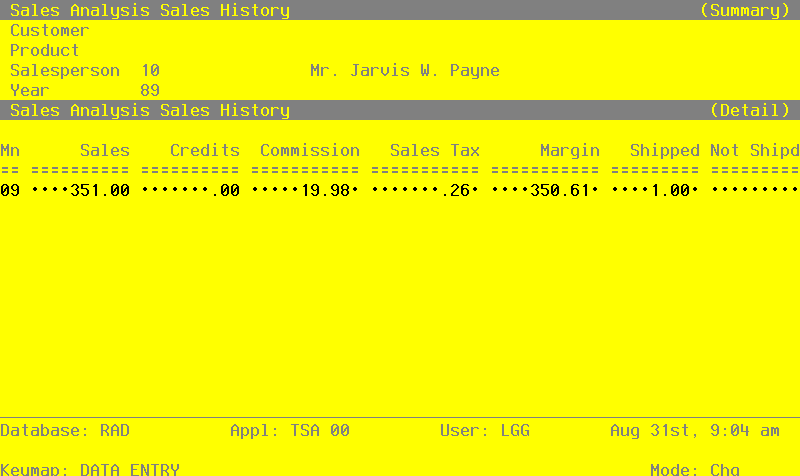
Data items for the preceding screen are described below:
- Month
Enter 2 digits to identify the calendar month to which this sales record applies.
- Sales
Enter up to 7 digits and 2 decimals for the total, gross sales figure for this customer/product/ salesperson combination.
- Credits
Enter up to 7 digits and 2 decimals for the total amount of credits issued to this customer/ product/salesperson combination.
- Commission
Enter up to 7 digits and 2 decimals for the total commissions earned by this customer/product/ salesperson combination.
- Sales Tax
Enter up to 7 digits and 2 decimals for the total amount of sales tax paid on sales to this customer/product/ salesperson combination.
- Margin
Enter up to 7 digits and 2 decimals for the total margin (sales minus cost) for this customer/ product/salesperson combination.
- Shipped
Enter up to 5 digits and 2 decimals for the total number of stockkeeping units shipped for this customer/product/ salesperson combination.
- Not Shipped
Enter up to 5 digits and 2 decimals for the total number of stockkeeping units ordered — but not shipped — to this customer/product/salesperson. “Not shipped” orders (that is, orders which were neither filled, nor backordered) represent lost sales.
The entered data is validated. Press RETURN to save the information on this screen.
Select the Previous Image option to go back to the Sales History screen. Select the Next Record option to go to the next Sales History by Month screen. Select the END option to go to the next Sales History screen.
At this screen the use of the MODE keys—ADD, DEL, CHG, or INQ—pertain to those records in the Sales History by Month file.