
Chapter 3-15: Using GUI Features of the Image Editor
Making Color Selections
You can make color selections for graphical attributes by using one of three methods:
- Swatch
To select a specific color from a collection of color swatches (see Figure 3-15-31). Click on the desired swatch to select the color.
- HSB
To define a color based on a combination of hue, saturation and brightness (see Figure 3-15-32). To select each of the three color components, click the appropriate radio button and use the slider to increase or decrease the component’s factor.
- Hue
Is the actual color on a scale that starts and ends at red (0 and 359). Yellow is 60, green is 120, etc.
- Saturation
Is the purity of the color, measured in percent from 0 to 100. At 0% saturation, hue is meaningless.
- Brightness
Is measured in percent from black (0) to white (100). At 0% brightness, both hue and saturation are meaningless.
- RGB
To mix a color by selecting the quantity of red, blue and green (see Figure 3-15-33) from the three respective sliding scales that range from 0 to 255.
To use one of the three methods, click on the appropriate tab (swatches, hsb or rGB) at the top of the Select Color overlay. The swatch method is the default method.
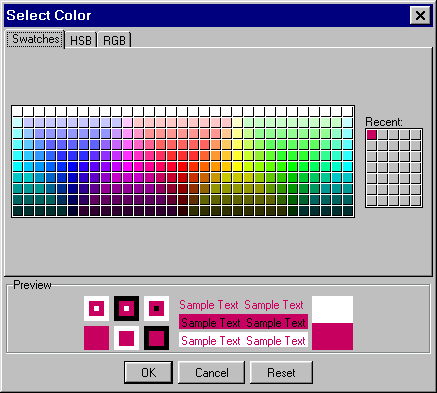
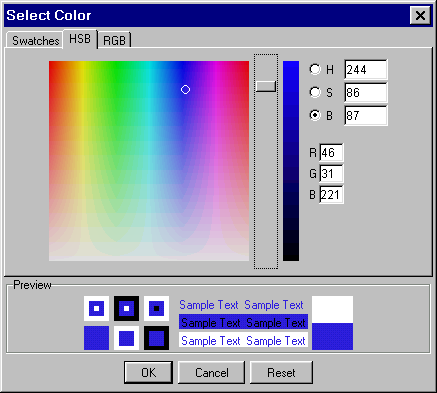
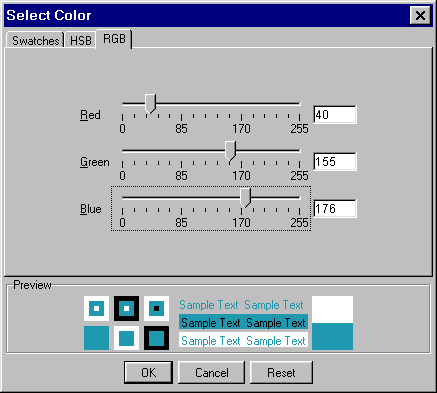
After selecting the desired color, each of the three color selection method overlays provide three options:
- ok to apply the selected color.
- cancel to cancel the color selection process and return to the Additional Attributes overlay, restoring the original color selection.
- reset to restore the original color selection and make a different selection using the same or alternate color selection method.