
Chapter 1-1: Overview of Application Design
Utilities
When you select the Utilities tab from the primary Application Design screen, the Application Design Utilities Menu is displayed, as shown in Figure 1-1-6 below.
Application Design Utilities menu
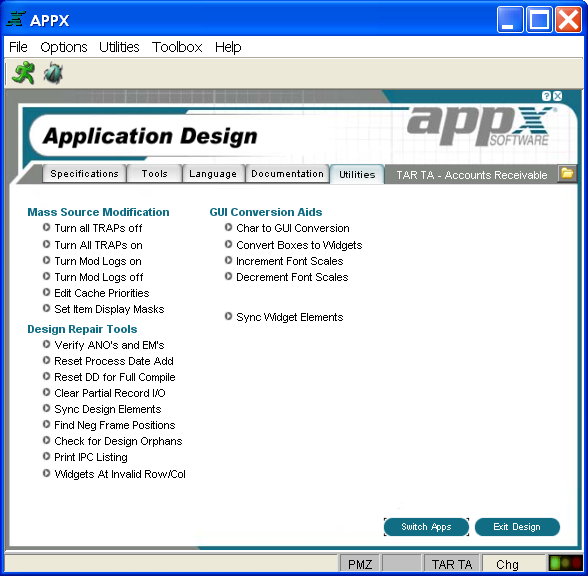
The Application Design Utilities Menu offers options for a variety of special purpose utilities including the following:
Source Modification
- Turn All TRAPs OFF turns all debugger traps off within the application so the debugger is not invoked during process testing.
- Turn All TRAPs ON turns all the debugger traps on within the application so the debugger is active during process testing.
- Generate Key Entry Frames regenerates the Key Entry frames for all inquiry processes in the application. This can be performed individually by process by using the regenerating option from the Additional Attributes option while editing the inquiry process.
- Renumber is used to renumber record sequence numbers within the application.
- Check Images for Item Overlap scans all images in the application and finds those that have items overlapping or immediately adjacent to one another. The images can be edited directly from this process. This option is most common used after expanding one or more fields in the data dictionary.
- Edit Process Cache Priority allows you to edit the cache priority of each process in the application. This function can be performed for each process by selecting the additional attributes option at the process level.
Design Repair Tools
- Orphan Detection to generate a series of reports that assess design elements in the application. An error is generated if any higher level design elements in the ancestry are missing. These errors refer to “orphans”. For example, an Image for Process “XXX” and RECORD Frame “100” would be an orphan if either the Process or the Frame were not currently on file.
Note that these reports may not list all orphans. For instance, if there was a second Image for the same Process and Frame in the prior example, they would both be orphans. However, only the first Image would be listed because it sufficiently identifies any missing elements in the ancestry to remedy the orphan status of both Images.
If you add a missing design element, the orphans become visible again. You then decide if you want to delete any design elements from the application. - Verify All References runs a special version of “Cross Reference All” for the current application. You can select the referenced but not defined option to generate a list of all design elements and processes that are referenced by other elements or processes yet do not exist. Or, you can select the defined but not referenced option to list all design elements and processes that exist but are not referenced anywhere in the application.
- Frames With Negative Row POs lists all frames within the application where the Row Position” field is negative or where the frame contains more rows that the screen can display at one time.
- Check for Duplicate ANO and EMs generates a report of any process that have a duplicate date added. These result in duplicate Executable Modules and may cause problems. The report also shows duplicate “area numbers” or ANO’s. These are internal pointers used to locate variables in memory.
If a duplicate EM is reported:
1. Delete all EMs for the application
2. Run the reset process date add fields option on the Toolbox’s Conversion menu.
If a duplicate ANO is reported:
1. Delete all EMs for the application
2. Initialize the BITMAP, ELEMENT, FILE, and INTIAL design files for the application
3. Process the data dictionary for the application
4. Restructure the application’s end user data files - IPC Listings generates a list of IPC files for either the applications processes or files, focusing on any exceptions from standard values. Any exceptions found can be corrected by this utility.
IPC (Interprocess Communication) fields are used to define and control the sharing characteristics of APPX design elements. APPX designers don’t have direct access to these fields as they are automatically maintained by APPX based on design entry in fields such as File Type and Share Class. - Convert CHR Boxes to Widgets. Boxes were originally implemented as CHR records in APPX Version 4.0. With Version 4.1, they have been re-implemented as records in the WIDGET file. CHR boxes are now obsolete.
This jobs allows process selection by a query. For each process selected, any box CHR records found are converted to WIDGET records. A log of the changed processes is produced. The conversion of a box to a widget may fail if a widget is already defined in the same location on the image.
GUI Conversion Aids
- Turn All TRAPs OFF turns all debugger traps off within the application so the debugger is not invoked during process testing.
- Turn All TRAPs ON turns all the debugger traps on within the application so the debugger is active during process testing.
- Generate Key Entry Frames regenerates the Key Entry frames for all inquiry processes in the application. This can be performed individually by process by using the regenerating option from the Additional Attributes option while editing the inquiry process.
- Renumber is used to renumber record sequence numbers within the application.
- Check Images for Item Overlap scans all images in the application and finds those that have items overlapping or immediately adjacent to one another. The images can be edited directly from this process. This option is most common used after expanding one or more fields in the data dictionary.
- Edit Process Cache Priority allows you to edit the cache priority of each process in the application. This function can be performed for each process by selecting the additional attributes option at the process level.
- Edit Processes Descriptive allows you to view and edit the descriptive names for every process in the application.